🚀 Getting Started
Welcome to InternAI! Think of it like ChatGPT, but it only answers questions based on YOUR documents. You upload PDFs (like company handbooks, manuals, or study materials), and then anyone can ask questions about them!
What can you do with InternAI?
- ✅ Upload PDF documents (handbooks, guides, research papers)
- ✅ Ask questions and get AI-powered answers with page citations
- ✅ Share access links with your team or customers
- ✅ Use AI agents that talk to each other to solve problems
- ✅ Embed a chat widget on your website
Watch: Quick Overview
This demo shows how to upload a PDF and ask questions about it
🔐 Logging In (Admin Panel)
The admin panel is where you manage everything – upload documents, create links, and configure settings. Only admins can access this area!
Go to the Login Page
Open your browser and go to: https://your-site.com/admin/login
Enter Your Credentials
Type in your email address and password. For fresh installations, check your installation logs or the ./storage/.env file for the auto-generated admin credentials.
Finding Your Credentials:
Run: cat ./storage/.env | grep ADMIN
Click "Login"
Hit the login button and you're in! You'll see the admin dashboard.
Important Security Tip!
If you're using the default password, change it immediately! Go to Settings after logging in to update your password.
📄 Uploading Documents
This is where the magic begins! Upload your PDF files and InternAI will read them, understand them, and be ready to answer questions about them.
Click "Documents" in the Menu
In the admin panel, look at the left sidebar (or top menu on mobile) and click on "Documents".
Click "Upload New Document"
You'll see a big button that says "Upload" or "Add Document". Click it!
Select Your PDF File
Choose a PDF file from your computer. The file can be up to 25MB.
Tip: Scanned PDFs work too! InternAI has OCR (Optical Character Recognition) that can read text from images.
Wait for Processing
InternAI will automatically:
- Extract all the text from your PDF
- Split it into smart chunks
- Create a searchable index (this is the "vector store")
- Make it ready for questions!
This usually takes 1-2 minutes depending on how big your document is.
Done! ✅
You'll see a green checkmark or "Ready" status when your document is processed.
Screenshot: RAG Chat Interface
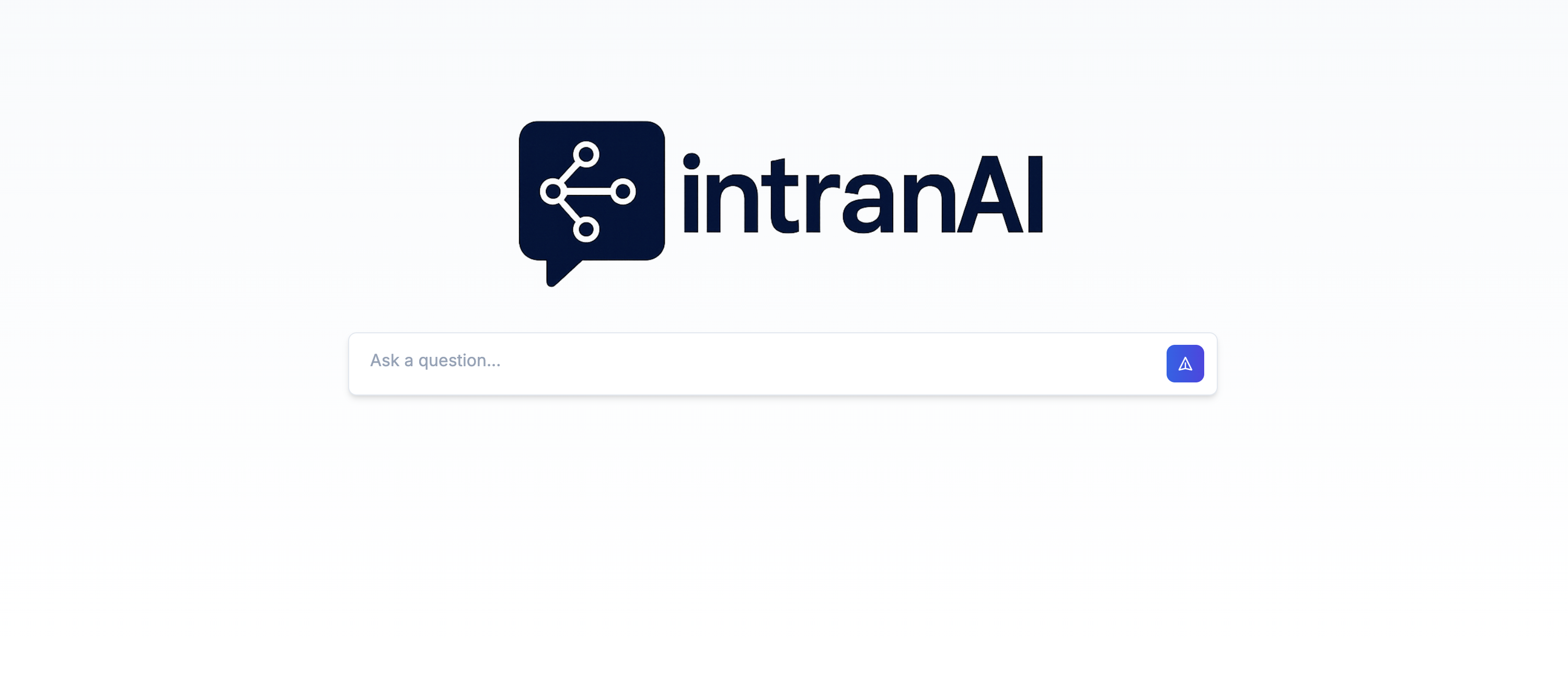
The RAG Chat interface where you can ask questions about your uploaded documents
🔗 Creating Secret Links
Secret links are how you share access to your documents. Instead of giving everyone a login, you create a special link that lets them chat with your documents. It's like a secret password, but cooler!
Go to "Secret Links" in the Menu
Click on "Secret Links" or "Links" in the admin sidebar.
Click "Create New Link"
Hit the button to create a new secret link.
Choose Your Settings
You can customize your link:
- 📛 Name: Give it a name like "Marketing Team Link"
- 📅 Expiration: Set when the link stops working (optional)
- 📚 Documents: Choose which documents this link can access
- 🌐 Domain Restriction: Only allow access from specific websites (for widgets)
Copy & Share the Link
Your link will look something like: https://your-site.com/chat/abc123xyz
Send this link to anyone who needs to ask questions about your documents!
Pro Tip: Multiple Links
You can create different links for different groups! For example:
- • One link for employees (access to HR documents)
- • Another link for customers (access to product guides)
- • A temporary link for training sessions (expires after the event)
💬 RAG Chat – Asking Questions
RAG stands for "Retrieval Augmented Generation" – but don't worry about the fancy name! It just means the AI looks through your documents to find answers instead of making things up.
How It Works:
1. You Ask
Type your question in plain English
2. AI Searches
The AI finds relevant parts in your documents
3. You Get Answers
With citations showing exactly where the info came from!
Example Questions You Can Ask:
Watch: RAG Chat Demo
Why Citations Matter
Every answer includes a citation like "Source: handbook.pdf (page 12)". This means you can verify the information and trust that it's from your actual documents – not made up by AI!
🤖 Swarm Chat – AI Agents Talking Together
This is the cool advanced feature! Instead of just one AI answering you, you can have MULTIPLE AI agents that talk to each other, debate, research, and solve complex problems together. It's like having a team of experts!
What Makes Swarm Chat Special?
Multiple Personalities
Each agent has different expertise – analyst, critic, creative, researcher...
They Talk to Each Other
Agents discuss, challenge ideas, and build on each other's responses
Deeper Thinking
Complex problems get multiple perspectives before you get an answer
Still Private
Works with local AI models for maximum privacy
Swarm Modes:
🔄 Sequence Mode
Agents take turns in order. First the researcher, then the analyst, then the writer. Good for step-by-step processes!
🎯 Critique Mode
One agent creates something, another critiques it, then it gets improved. Great for getting polished, well-reviewed outputs!
Screenshot: Swarm Chat in Action

Video: Sequence Mode Example
Video: Critique Mode Example
⚙️ Settings & API Keys
The Settings area is where you configure how InternAI works – add your AI providers, change your password, and customize the system.
Key Settings:
OpenAI API Key
To use GPT-4 and OpenAI's features, you need an API key from OpenAI.
- Go to platform.openai.com/api-keys
- Create a new API key (it starts with "sk-...")
- Paste it in InternAI Settings → OpenAI API Key
- Click Save!
Local AI (Ollama)
Want 100% privacy? Use local AI models with Ollama! No data ever leaves your server.
In Settings, you can configure your Ollama server address (usually http://localhost:11434).
Change Admin Password
Don't forget to change your password from the default! Look for "Profile" or "Account Settings" to update your login credentials.
Branding & Appearance
You can upload your own logo and customize colors to match your company's brand!
Keep Your API Keys Safe!
Never share your API keys with anyone. InternAI encrypts them in the database, but treat them like passwords – keep them secret!
🧩 Embedding the Chat Widget
Want to add InternAI chat directly to your own website? You can embed a chat widget that pops up in the corner of your page – just like those "How can I help?" chat bubbles you see on other sites!
Create a Secret Link
First, create a secret link for the documents you want the widget to access.
Get the Widget Code
In the secret link settings, you'll find an "Embed Code" section. It looks like this:
Add to Your Website
Copy that code and paste it into your website's HTML, just before the closing </body> tag.
That's It! 🎉
A chat bubble will appear on your website. When visitors click it, they can ask questions about your documents!
Domain Restrictions
You can set which websites are allowed to use your widget. This prevents someone from copying your embed code and using it on their own site!
💾 Backups – Keeping Your Data Safe
Backups are like saving your game progress – if something goes wrong, you can go back to where you were! InternAI can automatically backup all your documents, settings, and data.
What Gets Backed Up:
Backup Features:
Scheduled Backups
Set it and forget it! Choose daily, weekly, or monthly automatic backups.
Encrypted with AES-256
Your backups are encrypted before they're stored. Even if someone gets the backup file, they can't read it!
Store on Your Own S3
Use your own Amazon S3, DigitalOcean Spaces, or any S3-compatible storage. YOU control where your backups go!
One-Click Restore
Need to restore? Just click a button in the admin panel – no technical skills required!
🔧 Troubleshooting – Common Problems & Fixes
Something not working? Don't panic! Here are solutions to the most common issues.
"My document upload is stuck" or fails
Possible causes:
- File is too large (max 25MB)
- File is not a valid PDF
- OpenAI API key is missing or invalid
Fix: Check that your file is under 25MB and is a proper PDF. Go to Settings and verify your OpenAI API key is entered correctly.
"The AI gives wrong answers" or says it doesn't know
Possible causes:
- Document wasn't fully processed
- The information isn't in the document
- Question is too vague
Fix: Check if the document shows "Ready" status. Try asking more specific questions. The AI can only answer based on what's in your documents!
"I can't log in to the admin panel"
Possible causes:
- Wrong email or password
- Caps Lock is on
- Browser cache issues
Fix: Check your ./storage/.env file for the correct admin credentials.
Clear your browser cache or try a different browser. If you've forgotten your password, check the installation logs or contact your administrator to reset it.
"Secret link says expired or invalid"
Possible causes:
- The link has reached its expiration date
- The link was deleted by an admin
- Typo in the link URL
Fix: Ask the admin to create a new link, or check if the link was set to expire. Make sure you copied the full link without missing any characters.
"Widget doesn't appear on my website"
Possible causes:
- Script not placed correctly in HTML
- Domain is not in the allowed list
- JavaScript error on your page
Fix: Make sure the script is placed just before </body>. Check that your website's domain is added to the allowed domains in the secret link settings.
Still Need Help?
If you're still having trouble, we're here to help! Contact us and we'll sort it out together.
Email Support: info@internai.ch